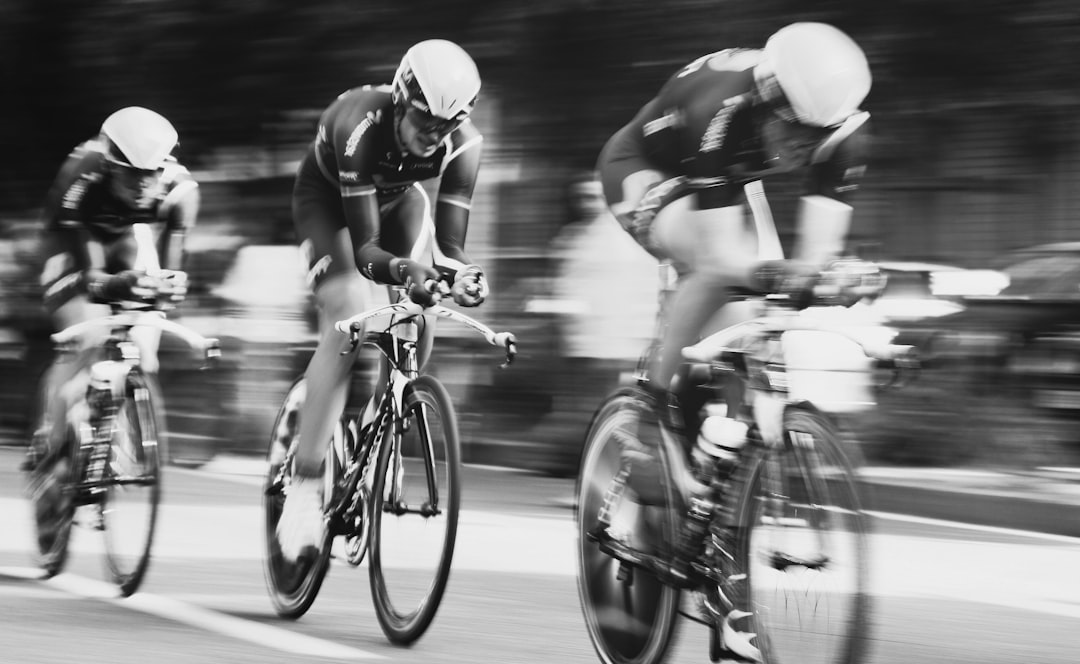
How to Use Your Bike Computer During a Triathlon Race: Settings and Strategy
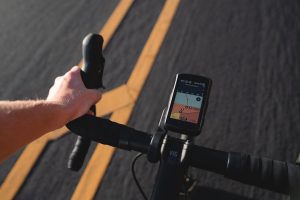
Your bike computer can win or lose you a race. Used well, it keeps you on your target power and pacing strategy, preventing the over-eager first 20km that turns into a death-march run. Used poorly — with six screens of data you end up ignoring — it is an expensive distraction. Here is how to set it up for race day and what to look at when it matters.
Pre-Race: Setting Up Your Screens
The golden rule for race day screens is fewer is more. Create a dedicated race profile on your device (Garmin calls it an "activity profile"; Wahoo calls it a "workout page") so you are not navigating race-day settings with cold hands in T1.
- Screen 1 (primary race screen): 3–4 data fields maximum. For most triathletes: Current Power (or NP), Heart Rate, Current Speed, Lap Time. Bigger text is better — you can read it at 40kph
- Screen 2 (nutrition/pacing): Total Time, Total Distance, Calories (as a rough fuel consumption guide), Average Power
- Screen 3 (optional — map): only worth enabling if you are racing an unfamiliar course without support riders; most triathletes are better served with two data screens than a map
Power vs Heart Rate vs Speed: What to Follow
The hierarchy for pacing in triathlon is well-established by coaches: power first, heart rate as a sanity check, speed as contextual information.
- Power: it responds immediately and is unaffected by wind, heat or adrenaline. If you have a power meter, race to a power target. Aim for 72–78% of your FTP for a 70.3 bike leg; 67–72% for Ironman distance
- Heart rate: it lags by 60–90 seconds, drifts upward in heat and tends to spike early in a race due to nerves. Use it to flag if power is unrealistically high on a hot day (HR should be at the lower end of your target zone, not spiking into zone 4)
- Speed: informative on flat courses; nearly useless on technical or hilly routes. A 28kph headwind average does not mean you underperformed
Auto-Lap: How to Use It (and When Not to)
Setting auto-lap to 10km intervals gives you useful lap-split feedback without cluttering your race data. You will see your 10km average power for each segment, letting you spot pacing errors in real time: if lap 2 power is 15W higher than lap 1, you are going out too hard. Turn off auto-lap if you want a clean single file for post-race analysis — you can add manual splits in Garmin Connect or the COROS app afterward.
Nutrition Reminders
Most modern bike computers support alert reminders. Set an alert every 20–25 minutes to prompt you to eat or drink. At race pace the body's sensation of hunger is suppressed — athletes routinely arrive at T2 under-fuelled simply because they forgot to eat on the bike. A 5-second beep is the cheapest performance gain you will find.
After the Race: Reviewing Your Data
The post-race data file tells a story that is impossible to perceive during the event. Look for:
- Variability Index (VI): on Garmin and most platforms, VI = Normalised Power divided by Average Power. Under 1.05 is steady pacing; over 1.10 suggests you surged repeatedly (often on hills), which costs energy efficiency
- Power fade: compare your average power in the second half of the ride to the first. If it dropped more than 8–10%, your starting power was too high
- Heart rate drift: if HR climbed 15+ BPM over identical power in the second half, heat, dehydration or under-fuelling contributed
Related: Best cycling computers for triathlon 2026 · How to train with power on the bike · Best power meters for triathlon